Buying stock shouldn't be guesswork.
Raise a purchase order, get it approved, receive the goods — and watch your inventory and payment records update themselves.
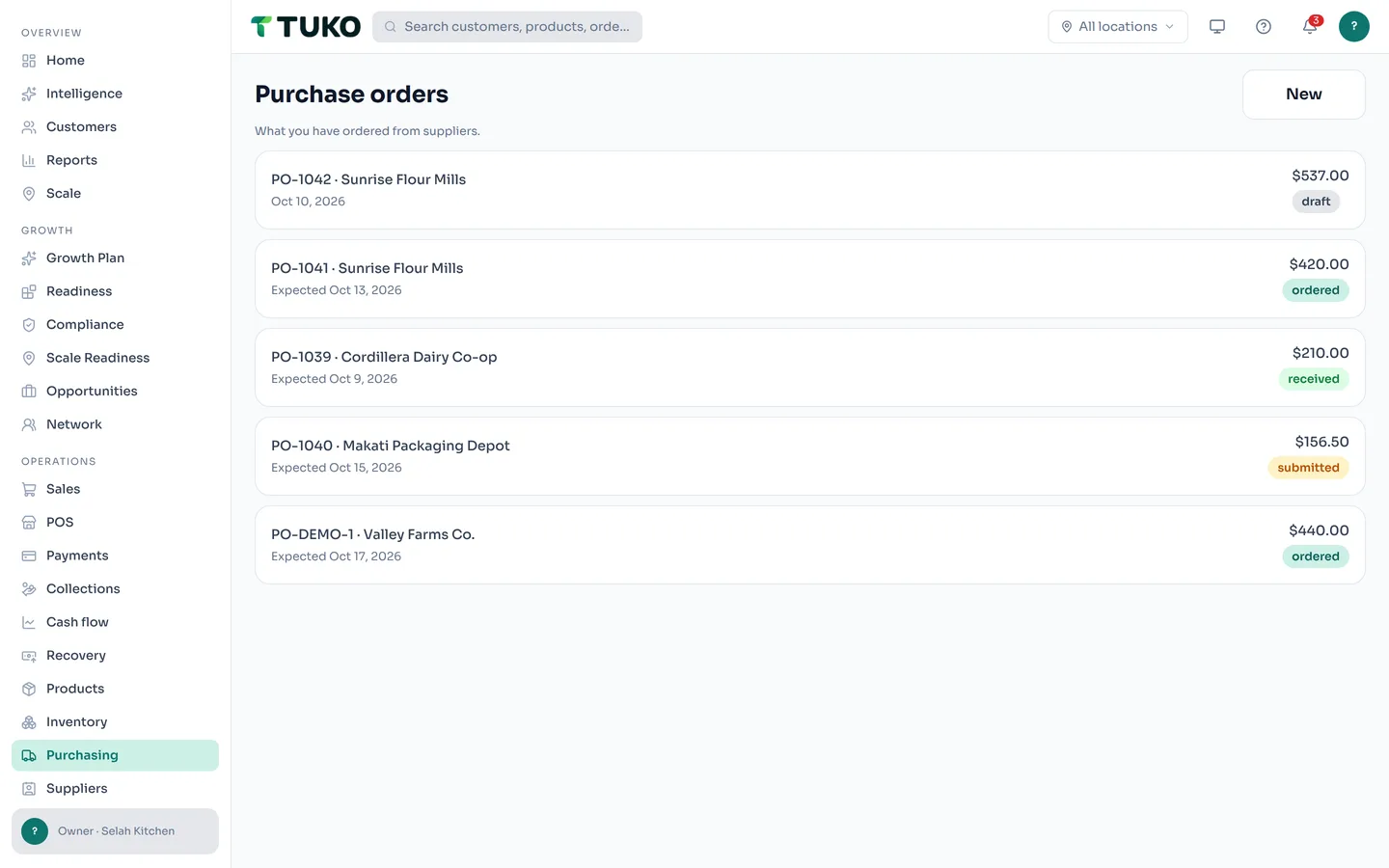


From "we're running low" to "it's on the shelf"
One flow takes a product from reorder point to received — with approval and a paper trail at every step.
Purchase orders
Pick a supplier, add the products and quantities, and submit. The order moves through draft, approved, ordered, and received — everyone can see where it stands.
Approval flow
Staff draft and submit; owners and admins approve. Spending stays controlled without slowing the team down — every step is recorded.
Receiving that updates stock
When the delivery lands, receive it on the order — on-hand levels rise and the movement is written to the product's permanent ledger. No second entry, no forgotten count.
Supplier records
Contacts, payment terms, and total ordered per supplier — plus their full purchase-order history — in one clean directory.
Supplier payments
Pay straight from the purchase order — the running paid total stays on the order, and the payment lands in your money-out ledger. Retries can never pay twice.
Restock in two taps
A product at its reorder point offers "Create purchase order" — pre-filled with the product, preferred supplier, and reorder quantity.
Purchasing doesn't live alone
In TUKO, a purchase order is connected to everything it touches: receiving updates inventory, paying lands in your payments ledger, and low stock surfaces on your daily brief before it costs you a sale.
That's the difference between purchasing inside a command system and a folder of emailed PDFs: the order, the stock, the supplier, and the money all tell the same story. Compare TUKO vs spreadsheets.
Purchasing questions, answered
How do I create a purchase order in TUKO?
Open Purchasing, tap New, pick a supplier, and add the products and quantities you want to order. Save it as a draft or submit it for approval — once approved and marked ordered, it waits for delivery.
Does receiving a purchase order update my stock?
Yes. Tap "Receive all remaining" when the goods arrive and on-hand levels update automatically, with every receipt written to the product's permanent movement ledger.
Who can approve purchase orders?
Owners and admins approve. Staff can draft and submit purchase orders, but only an admin can approve them — so spending stays controlled without slowing anyone down.
Can I see what I've paid each supplier?
Yes. Every supplier record shows their payment terms and total ordered, and each purchase order tracks the running "paid to supplier" amount. Supplier payments also appear in your payments ledger as money paid out.

Order with confidence.
Create your workspace and raise your first purchase order today.
Get started freeFree to start · No credit card required · Works on web, iOS, and Android