The till that doesn't stop
when the internet does.
TUKO for Windows puts your register and your attendance kiosk on the PC at the counter. Sell, clock in, and print receipts with no connection — everything syncs when the link returns. Same workspace, same account, same data.
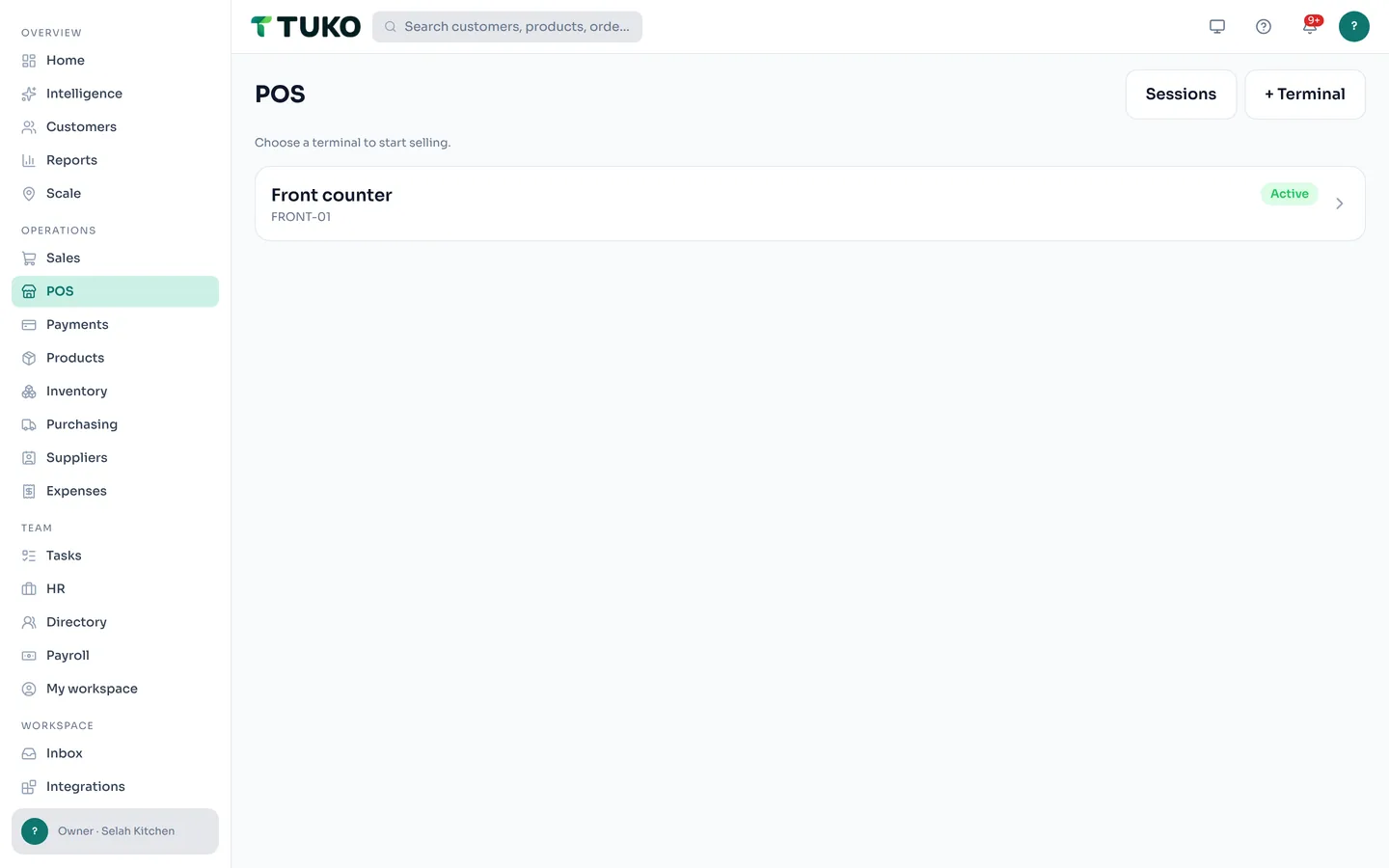


Register, kiosk, records — the same workspace, one account.
A real Windows app — not a pinned browser tab
The browser version of TUKO needs a connection for anything that moves money. The desktop app is built for the counter, where the connection is not a promise.
Sell with no internet
The register keeps taking sales when the connection drops — every sale queues on the PC and posts when you're back online. Closing the app doesn't lose them.
Clock-ins that survive outages
The attendance kiosk keeps recording punches with their real times — photos included — and backfills them in order when the link returns. A punch is never re-stamped to the sync time.
Prints straight to the printer
Pick any Windows printer once and receipts go straight to it — no print dialog per sale. A paper jam never loses a sale; reprint from the record anytime.
Updates itself
The app checks on launch and hourly, downloads in the background, and installs on quit — every till stays current with nothing to click.
Built for a fixed till
One instance per PC, so a second launch focuses the register instead of opening a second till. A kiosk flag locks a shared station to the clock-in screen.
Sign-in sealed by Windows
Your session is stored encrypted with Windows' own data protection — it survives restarts without sitting on disk in plain text.
Keeps working when the internet drops
A dead connection doesn't close the register — it just delays the paperwork.
What happens offline
- Sales and clock-ins taken without a connection are queued durably on the PC — closing the app doesn't drop them.
- When connectivity returns, queued work replays automatically, in order, with the real timestamps it happened at.
- Replays are deduplicated — the queue can't post the same sale or punch twice, no matter how the connection flaps.
What never happens
- No silent loss — anything the server can't place cleanly is parked for a manager to review, not dropped.
- No double-charges — sales and punches are idempotent, so a retry is safe even when the network isn't.
- No surprise gaps — queued and parked items are visible, so you always know what's still in flight.
Offline capture covers the POS register and the attendance kiosk on the Windows app — everything else needs a connection, same as the web app. Sign in once and open the register once while online so the app can save your catalog, terminal, and settings first.
Fifteen minutes of setup, then it just works
Offline resilience is earned on the good days — the app prepares while the connection is up.
1 · Sign in once, online
Your usual TUKO email and password — two-factor if you use it. The session is stored encrypted and refreshes itself across realistic outages.
2 · Open the register once, online
That first online session saves your catalog, terminal, tax profile, and staff list to the PC — the pieces the register and kiosk need when the link is gone.
3 · Forget about it
From then on the PC survives outages and restarts. Sell, clock in, print — and let the sync catch up when the internet does.
Download TUKO for Windows
One file, two minutes. Sign in with your usual TUKO account and the workspace is already there.
Installer
The standard install — Start menu and desktop shortcuts, per-user so no admin rights needed, and automatic updates that install on quit. This is the build every till should run.
Download TUKO-Setup.exe v0.3.0 · ~83 MB · Windows 10/11, 64-bitPortable build
A single exe that runs without installing — useful for trying TUKO on a machine you don't administer. It does not auto-update; download the new file when a release ships.
Download TUKO-Portable.exe v0.3.0 · ~83 MB · Windows 10/11, 64-bitRun the downloaded file. Double-click TUKO-Setup.exe in your Downloads folder — it's a normal Windows installer.
If Windows shows "Windows protected your PC", click More info, then Run anyway. That's a reputation check on new installers — safe for files downloaded from tukohq.com, and it disappears as builds are signed.
Sign in with your TUKO account. Your whole workspace is already there — open the register once while online and it keeps selling offline from then on.
Runs on the PC you already have
TUKO for Windows is a lightweight app — if the PC can browse and print, it can run a till.
Minimum — it'll work
- Windows 10 or later, 64-bit (x64)
- Any dual-core processor
- 4 GB RAM
- 500 MB free disk space
- 1024 × 640 display
- Internet for first sign-in — the register keeps working without it
Recommended — it'll fly
- Windows 11, 64-bit (x64)
- Quad-core processor, 2.5 GHz or better
- 8 GB RAM
- SSD with 1 GB free space
- 1920 × 1080 display
- Broadband for live sync — plus a USB receipt printer and a webcam if you'll run the attendance kiosk
Windows on ARM devices run TUKO through x64 emulation. For a shared clock-in station, launch with the --kiosk flag — fullscreen, no menus. On a Mac? TUKO for Mac is the same app for macOS 11+. Linux builds are not part of this release.
Not a side app — the same workspace
TUKO for Windows is not a separate product with its own login and its own reports. A queued sale posts through the same pipeline as a live one — deducting stock, recording payment, and feeding Business Pulse. A kiosk punch lands in attendance with its real timestamp, indistinguishable from one taken live.
Prefer the browser? app.tukohq.com is the same workspace minus offline capture. On phones and tablets, TUKO: Business Manager & POS carries the same register to iOS and Android.
TUKO for Windows, answered
What is TUKO for Windows?
TUKO for Windows is the desktop app for tills, kiosks, and back-office PCs. It runs the same TUKO workspace as the web and mobile apps — same account, same data — and adds what a browser cannot do: offline selling at the register, offline clock-ins at the kiosk, direct receipt printing, and automatic updates.
Does the TUKO desktop app work without internet?
Yes — the POS register and the attendance kiosk keep working with no connectivity. Sales and clock-ins queue on the PC with their real timestamps, then sync automatically when the connection returns. Replays are deduplicated, so nothing posts twice and nothing is silently dropped. Sign in once and open the register once while online first, so the app can save your catalog and settings.
Where do I download TUKO for Windows?
Right here — download the installer (or the portable build). The files are served from downloads.tukohq.com/desktop/, TUKO's update feed — see how updates ship for how each release is published and how installed apps stay current.
Why does Windows show a SmartScreen warning on the installer?
SmartScreen flags installers that are new or not yet widely installed — it is a reputation check, not a virus verdict. The dialog only shows "Don't run" at first: click "More info" to reveal "Run anyway", then continue normally. It's safe for installers downloaded from tukohq.com, and the warning disappears entirely once builds carry a reputation-signed certificate.
How do updates work on the desktop app?
The app checks for updates on launch and about once an hour, downloads new versions in the background, and installs them the next time you close the app. There is nothing to click and no queued work is lost — updates land between sessions, not mid-sale.
Can it print receipts without a print dialog?
Yes. Pick any printer Windows knows in the app's settings and receipts print straight to it after each sale — no dialog per transaction. The sale commits before the receipt prints, so a paper jam never loses a sale; reprint anytime from the record.
Can I lock the PC into just the clock-in screen?
Yes — launch the app with the --kiosk flag and it opens fullscreen with no menus, so a shared station stays on the attendance kiosk.
What are the system requirements for TUKO for Windows?
Any PC running Windows 10 or later (64-bit) with a dual-core processor, 4 GB RAM, 500 MB free disk, and a 1024 × 640 display. Recommended: Windows 11, quad-core 2.5 GHz+, 8 GB RAM, SSD, and a 1920 × 1080 display — plus a USB receipt printer and a webcam for the attendance kiosk. Internet is needed for the first sign-in and for syncing; the register keeps working without it.
Does TUKO for Windows cost extra?
No. It is the same TUKO account and the same plan — sign in with your usual email and password and the workspace is already there. TUKO is free to start.

The counter doesn't wait for Wi-Fi.
Put the till on Windows — download, sign in, and it just works.
Download for Windowsv0.3.0 · Windows 10/11 · Free to start · or start on the web first